Product Updates: January 2025
January 2025 Product Updates:
January brings a suite of updates to elevate your automation experience.From new actions to refined enhancements and critical fixes, these updates are designed to simplify workflows and boost productivity. Here’s a breakdown of the key updates:
New Actions:
Google Chat Actions
Lookup Google Chat Space by Name or User Email
Description: This action allows users to locate a Google Chat space by its ID or an associated user’s email address for direct message spaces.
Use Cases:
Access Management: Easily retrieve specific spaces to audit or adjust user permissions efficiently.
Search Google Chat Spaces
Description: This action retrieves a comprehensive list of Google Chat spaces based on user-specified conditions, such as allowing external users or last activity time across the Google Workspace account. This action requires a Google Chat Admin connection, enabling searches across the entire workspace, not just spaces the user has access to.
Use Cases:
Workspace Auditing: Automate audits by listing all Google Chat spaces and reviewing user memberships.
Reporting: Generate reports on active or inactive spaces to monitor collaboration activities.
Excel Online Actions:
In this release, we have introduced a set of new actions that enable you to interact with Microsoft Excel. Please note that
These actions work with Microsoft Business/365 accounts only; Microsoft personal accounts are not yet supported.
Excel files/workbooks must be stored in OneDrive Business or SharePoint.
The Excel file can be selected statically through the file picker dialog when designing the flow or dynamically at run time from OneDrive Business or SharePoint Document Library.
For files stored on OneDrive Business, configure the Location value to OneDrive Business and use the token picker to specify a dynamic value for the File ID.
For files stored in SharePoint, configure the location value to SharePoint. You can then configure values for Site ID and Drive ID (Document Library ID) dynamically or statically. Finally, use the token picker to specify a dynamic value for the File ID.
If you are not sure where the dynamic file will reside, select Auto for Location configuration and use the token picker to specify a dynamic value for the File ID. Zenphi tries to locate the file on OneDrive Business and SharePoint. Please note that we recommend using the first two methods where possible for better performance.
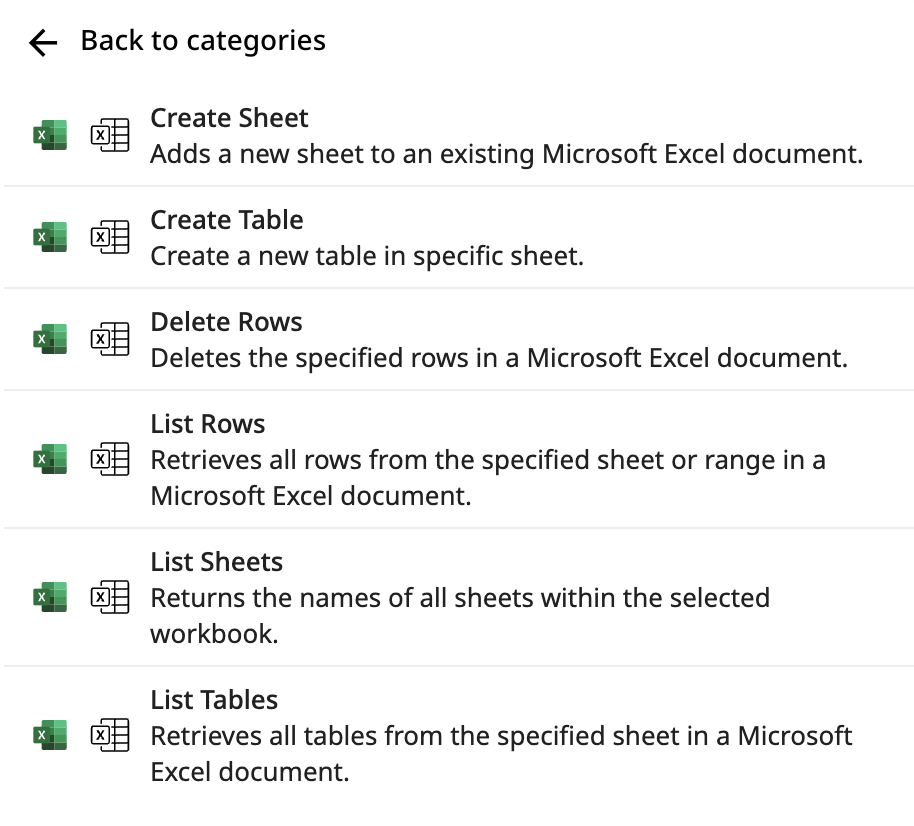
Excel Online - Create SheetDescription: Enables users to dynamically create a new sheet in an existing Excel Online workbook stored in OneDrive or SharePoint. The “Auto” feature automatically locates the workbook in both OneDrive and SharePoint locations.
Use Cases:Data Organization: Automatically create separate sheets for structured workbooks.
Reporting Automation: Add a new sheet for each report cycle, ensuring previous reports are retained.
Team Collaboration: Create project-specific sheets in shared workbooks.
Excel Online - List Sheets
Description: Retrieves a list of all sheets in an existing Excel Online workbook stored in OneDrive or SharePoint, providing detailed information such as sheet ID and name.
Use Cases:Workbook Auditing: Retrieve details of all sheets to ensure correct naming and positioning.
Dynamic Sheet Processing: Automate workflows based on sheet details.
Data Validation: Identify hidden or very hidden sheets for audit or cleanup.
Excel Online - List Rows
Description: Retrieves rows from a specified sheet or table in an Excel Online workbook, providing detailed outputs including row data and sheet name.
Use Cases:Data Extraction: Extract rows for reporting or analytics.
Cross-Location Workflows: Use the Auto option to retrieve data from workbooks across OneDrive and SharePoint.
Data Migration: Extract rows for migration to another system or data source.
Notes:
The Start and End Row values are relative to the sheet or the table if a table is selected.
Excel Online - Delete Rows
Description: Allows users to delete specific rows or a range of rows from an Excel Online workbook stored in OneDrive or SharePoint.
Use Cases:Data Cleanup: Automate the removal of outdated or unnecessary rows.
Error Correction: Remove erroneous rows identified during validation.
Automated Maintenance: Set up recurring workflows to delete rows meeting certain criteria.
Excel Online - Create Table
Description: Enables users to create structured tables in an Excel Online workbook by specifying target sheets and table dimensions.
Use Cases:Data Organization: Convert raw data into structured tables.
Automated Reporting: Format data dynamically for dashboards.
Dynamic Table Generation: Automate table creation as part of data workflows.
Excel Online - List TablesDescription: Retrieves a list of all tables within a selected Excel Online workbook, providing details such as name, styling, and visibility settings.
Use Cases:Workbook Auditing: Retrieve and review all tables in a workbook.
Report Generation: Extract table details for reporting.
Dynamic Table Management: Validate table names before modifying data programmatically.
[EXPLORE ONEDRIVE-RELATED ACTIONS IN DECEMBER PRODUCT UPDATE]Updated Actions
Google Drive - List Files
Update: Expanded functionality to include all options available in Google Workspace’s native “Google Drive List Files” action, improving usability with enhanced search capabilities.
Use Case:User Offboarding: List all Google Docs files containing the text “hello world” and owned by a departing user to facilitate data transfer.
Google Docs- Create Document Using Template
Update: Added support for inserting tables, making document creation more dynamic and customizable.
Use Cases:Invoice Generation: Automatically create invoices with itemized tables.
Reports: Generate structured reports with tables.
ClickUp Actions
Update: Updated all ClickUp actions to make the folder ID optional, aligning with ClickUp’s support for folder-less lists.Enhancements
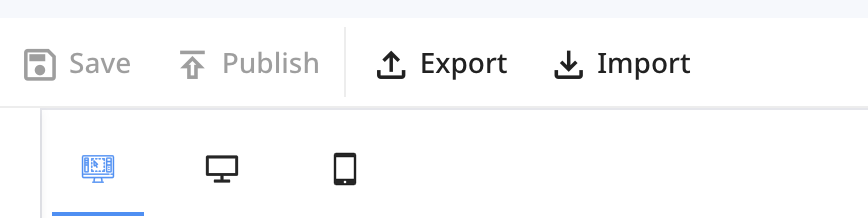
Support for Exporting and Importing Email Templates – Users can now seamlessly transfer email templates across different workspaces or create a base template for the company and reuse it as the starting point for other email templates.
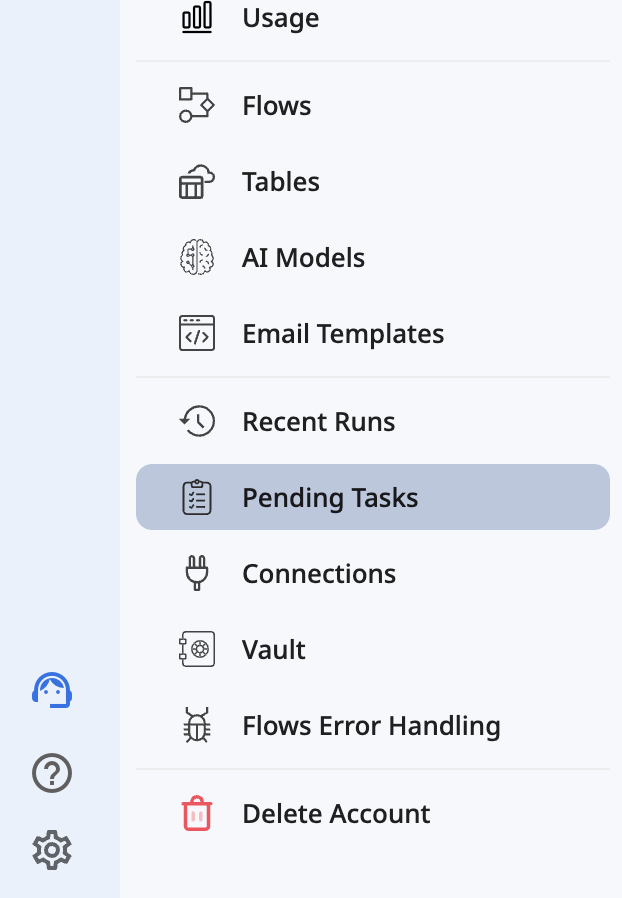
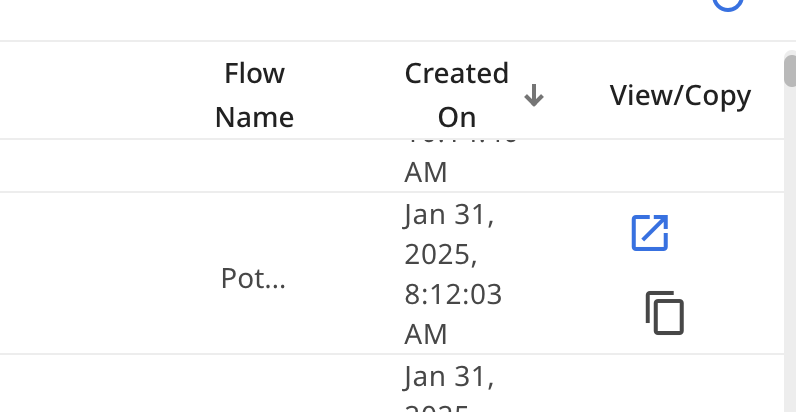
View Pending Tasks for Zenphi Form Requests – Workspace Admins can now track outstanding approvals and submissions, with clickable Run ID and Flow Name fields for easier navigation.
These updates bring significant improvements to Zenphi, ensuring a smoother and more efficient automation experience. Let us know how these enhancements benefit your workflows!