New Feature: Connect your Zenphi AI Agents to external tools with MCP Servers!
Hey everyone!
We’re excited to share a brand-new feature in Zenphi: MCP Servers are now available for your AI Agents
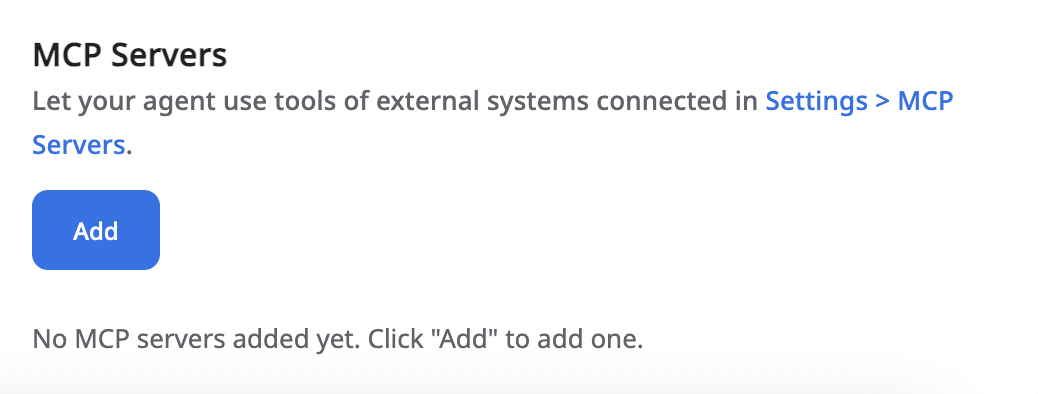
What's the difference between a regular connection and an MCP Server?
With a regular connection, you connect an app to Zenphi and then manually select and use its actions when building your workflow. With MCP, you simply give your AI Agent access to the connected app, and it can independently choose and use the actions it needs, without you having to manually add them one by one to your workflow.
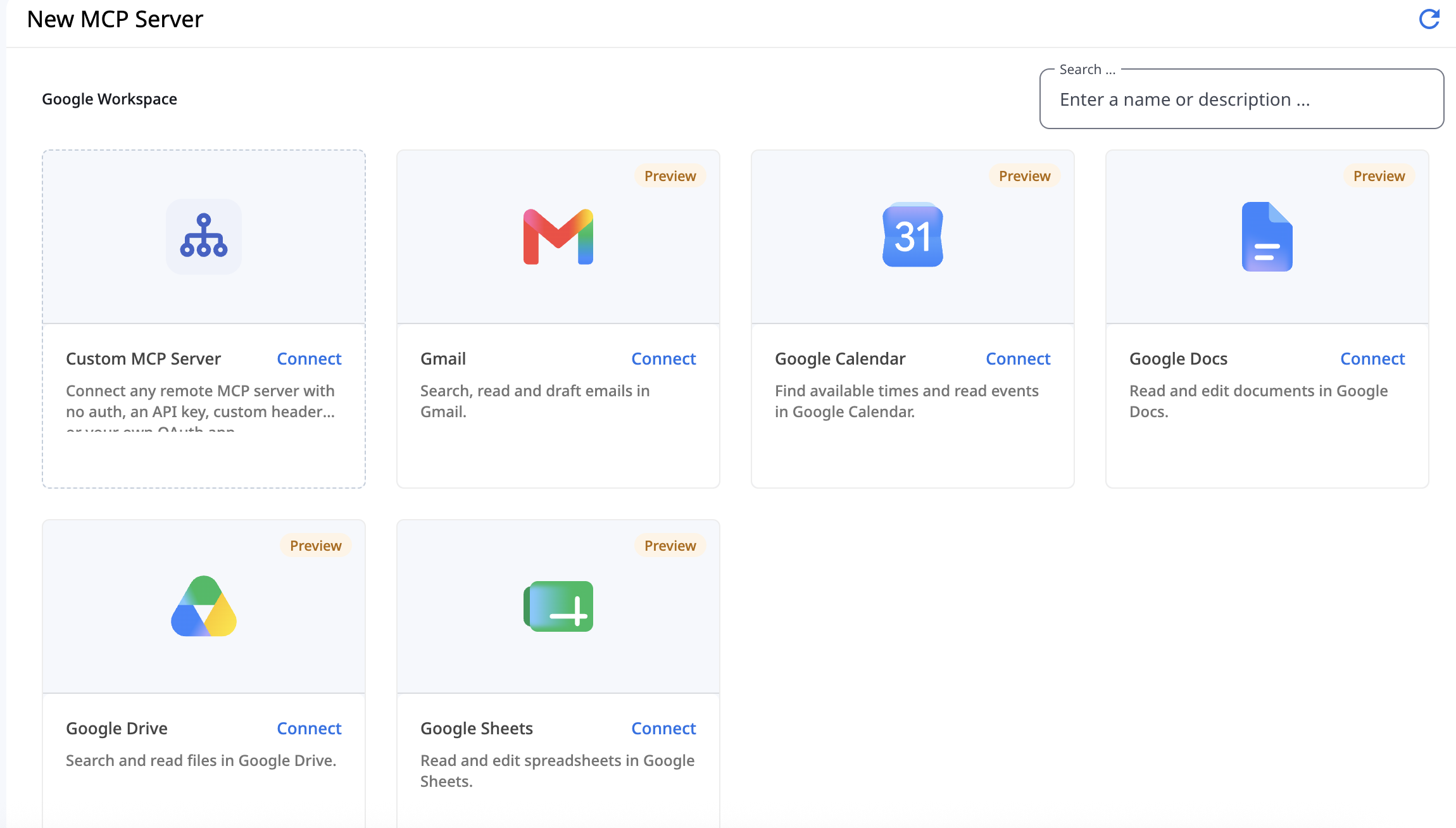
What does this mean for you? In simple terms, MCP Servers act like a bridge that lets your AI Agents directly use tools in other apps—like Gmail, Google Drive, Google Docs, Google Sheets, Google Calendar, or even custom external systems. Instead of building complex workarounds, you can now connect an app in Settings > MCP Servers and let your agent read documents, search emails, or check calendars on its own.
🔒 Important Security Tip: How Access Works
Before you start connecting everything, there is one really important thing to understand about how permissions work: You can limit what actions the agent takes, but you cannot limit which files or emails it can see.
Here is what that means in practice:
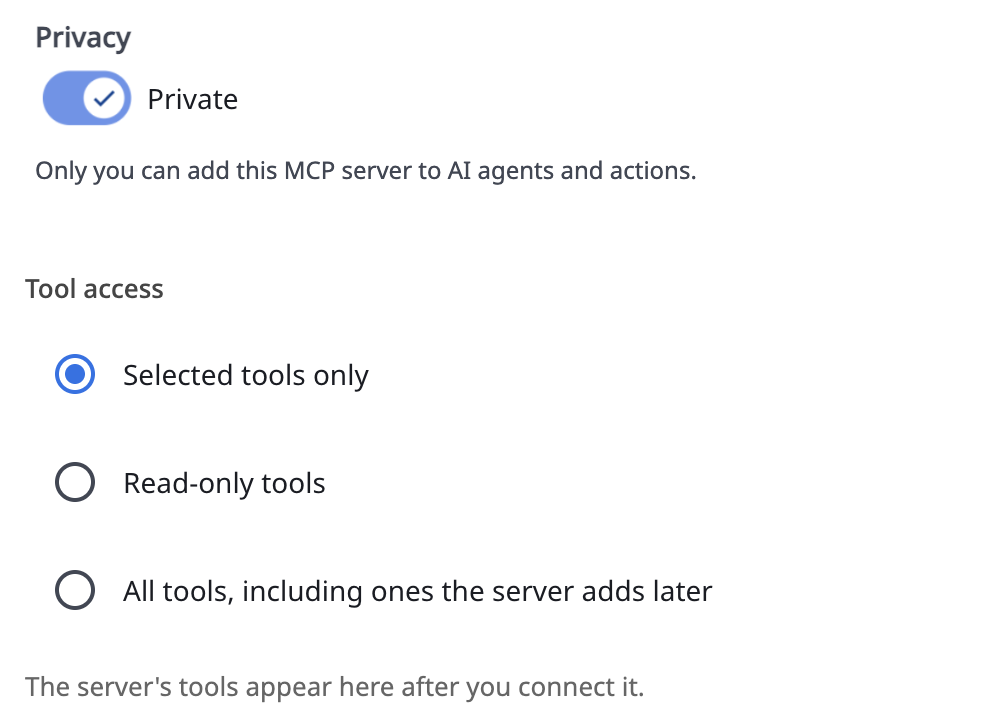
What you CAN control (Tool Access): When setting up a connection, you can choose "Read-only tools" or "Selected tools only" (for example, allowing the agent to read emails, while blocking it from sending or deleting them).
What you CANNOT control (Data Access): If you give an agent permission to read your Google Drive or Gmail, it can see everything inside that connected account. You cannot restrict it to just one specific folder or one specific email label.
Our Best-Practice Recommendation: Always connect your agents using a dedicated team or role account, rather than your personal work email!
Example: Suppose you are building an HR Agent to answer employee questions by looking up company policies. Connect Google Drive and Gmail using hr@yourcompany.com (which only has access to public HR policies and HR emails), not your personal email (which might contain private 1-on-1 notes, payroll files, or confidential leadership docs).
Ready to try it out?
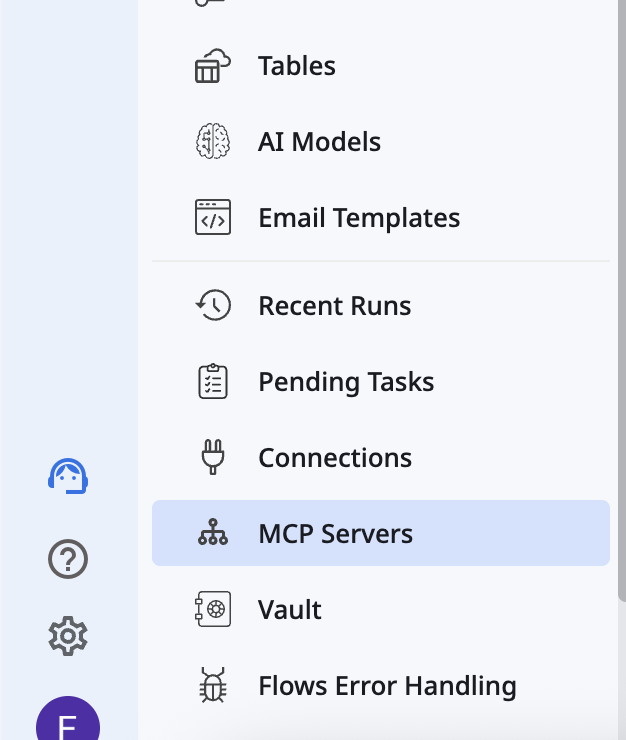
Head over to Settings > MCP Servers to connect your first app, then add it directly inside your AI Agent's settings.
Let us know in the comments what agents you're planning to build with this—and if you have any questions about setting it up safely, drop them below!